The Ultimate Guide to Transferring Your Animal Crossing: New Horizons Island to Switch 2
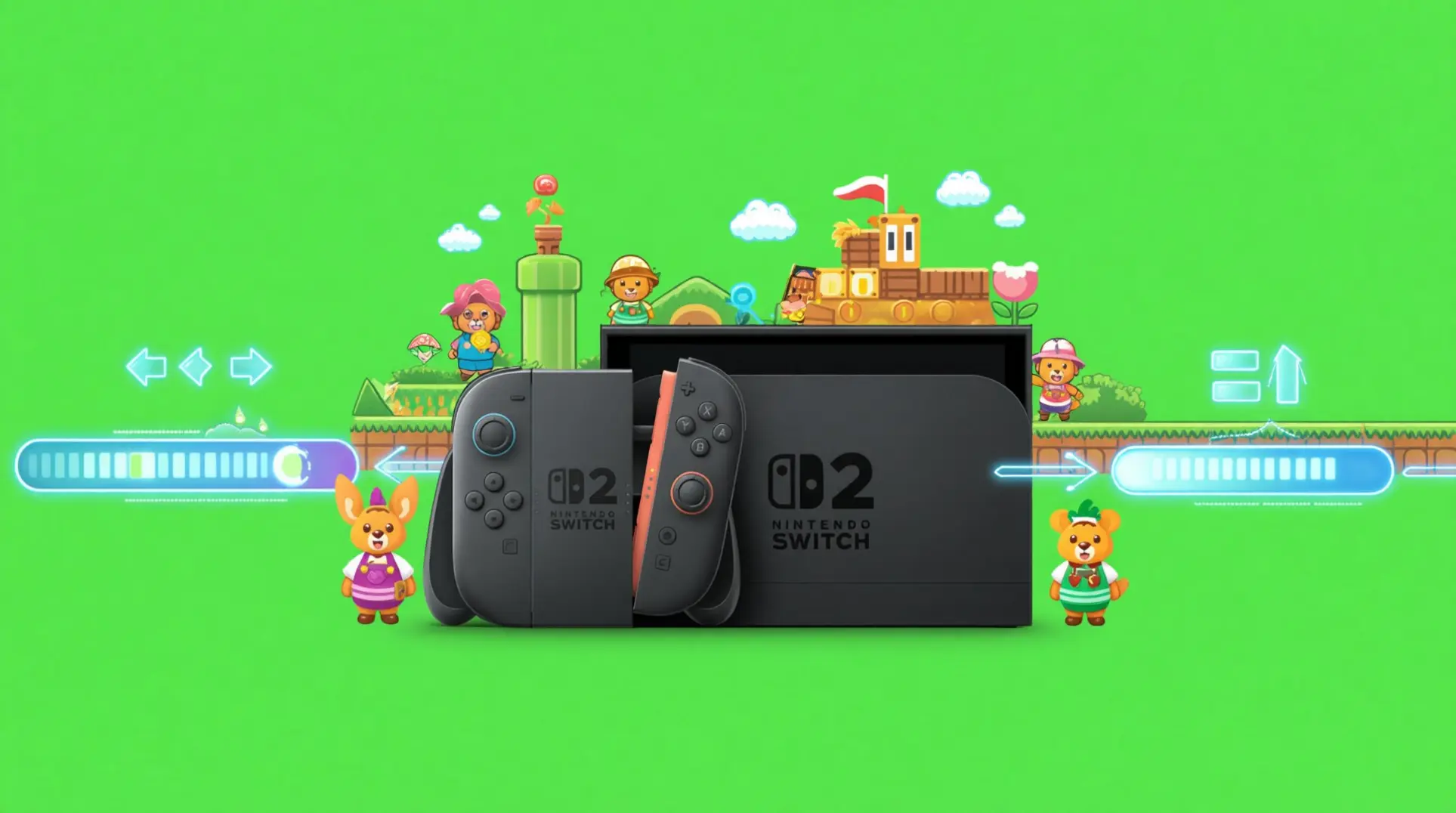
Moving your Animal Crossing: New Horizons island to a new Switch 2 is a high-stakes operation. One wrong step can mean losing years of progress. This guide provides the exact, foolproof process to migrate your entire island, including your DLC and secondary players, without a single bell lost.
Essential Pre-Transfer Checklist
Before you start messing with anything, you need to get both consoles talking the same language. This means firmware updates, game patches, and grabbing a special tool from the eShop. Skip any of these steps and you'll be staring at error screens instead of your island.
System Requirements & Updates
First things first: both your Switch and Switch 2 need to be running system menu 21.2.0 or higher. Without this, they won't even recognize the Animal Crossing patch you need, which means you're dead in the water before you start.
Once your consoles are updated, you'll need Animal Crossing: New Horizons version 3.0. The good news is this installs automatically if you have Software Auto-Updates turned on. If you don't, you can force it manually by hitting the + Options button on the game tile and selecting 'Software Update.'
Here's the annoying part: the full footprint for the Switch 2 Edition update is about 7.9 GB. This update includes higher-resolution textures, new content, and engine tweaks required to unlock the upgraded island experience on the target console. So if you're running low on storage, you'll want to clear some space before you start. Nothing kills the mood like a 'storage full' popup halfway through.
Island Transfer Tool Installation
Now for the actual transfer tool. The Animal Crossing New Horizons Island Transfer Tool is completely free on the Nintendo eShop, and it's tiny - approximately 348 MB - so it installs in seconds.
But here's the critical bit: you need to download it on both consoles. The transfer works through a two-way handshake, so if you only grab it on your old Switch, nothing's gonna happen when you try to move your island. Nintendo designed this thing to prevent duplication, which means both systems have to be running the app simultaneously for the magic to work.
Just search 'Animal Crossing Island Transfer Tool' in the eShop on each console and hit Free Download. That's it. No payment, no subscriptions, just grab it and you're ready.
What Transfers vs. What Gets Lost
This is where you really need to pay attention because Nintendo doesn't mess around with save data.
The entire island save moves, and I mean moves - this isn't a copy. After the transfer finishes, your original island is automatically wiped from the source console to prevent any duplication shenanigans. So make sure you're ready to commit.
Here's what comes with you:
- Complete island layout and all buildings
- All eight player residents and their progress
- Villager data (your favorites aren't getting left behind)
- Museum donations and collections
But - and this is a big but - screenshots or videos saved to your console's Album outside the game don't come along for the ride. You'll need to move those separately using System Settings or a microSD card if you want to keep them.
Also, don't confuse this with your Nintendo eShop account or user profiles. To transfer an Animal Crossing: New Horizons island to a Nintendo Switch 2, you must first use the dedicated Island Transfer Tool to move the island save data. After the island is successfully transferred, you then use the standard 'Transfer Your User Data' utility to move your user profile and eShop account information.
Step-by-Step Island Migration Process
Moving your island isn’t hard, but you have to follow the steps in order - mess up the sequence and you’ll be starting from scratch. Here’s how to get it right.
Source Console Setup (Old Switch)
First, grab your old Switch - the one that actually has your island. You’ll need the Island Transfer Tool from the eShop, and yeah, it’s completely free. Once it’s downloaded, fire it up and tell it you’ve played Animal Crossing: New Horizons before. The app scans your system and shows your Resident Representative’s name to confirm it found the right save, so just tap Next. You’ll see a 'Preparing to send...' progress bar pop up, and when that’s done, the screen changes to 'Waiting for the target console...' - and that’s your cue to leave it alone. Don’t close it, don’t put the console to sleep, just let it sit there broadcasting.
Target Console Setup (Switch 2)
While your old Switch is waiting, pick up your Switch 2, but here’s the part that trips people up: do not launch ACNH on it first. Not even once. If any user profile has opened the game, even accidentally, the transfer fails and you’re starting over. Instead, launch the Island Transfer Tool and pick 'Receive Island Data.' It'll ask for a 4-digit sync code - grab that from your old Switch's screen and punch it in fast, because it expires after 3 minutes. Both consoles will create their own private Wi-Fi link, showing 'Negotiating...' followed by 'Synchronizing...' progress bars. A couple quick notes: make sure both consoles are on the same Wi-Fi band (2.4 GHz or 5 GHz) and both are updated to the latest system firmware, or they won’t even recognize each other.
Transfer Confirmation & Completion
Once both consoles start talking, the transfer kicks off automatically. The whole process usually takes 5-10 minutes, though if you’ve been playing for years with a maxed-out museum and hundreds of custom designs, it can stretch to 15-20. When it finishes, your old Switch shows a clear message: 'Transfer complete. Your island now lives on the target console. You can safely delete the Island Transfer Tool from this system.' The Switch 2 says: 'Your island has arrived! Press A to return to the HOME Menu and launch Animal Crossing: New Horizons.'
When you launch ACNH, double-check that your passport photo and total play time match exactly - that’s your first sign the data came over clean. You can also check the title screen's upper-right corner; your character and island name should appear within 3 seconds if the save passed the integrity check. Oh, and one more catch: if you own the Happy Home Paradise DLC, you’ll need to re-download it on the new console. The save data transfers fine, but the license has to be re-linked to your new primary system.
The $4.99 Switch 2 Upgrade Pack: What You Actually Get
So you're eyeing that $4.99 upgrade button and wondering if it's worth the coffee money. Spoiler: the performance gains are legit, but there's a catch for physical owners. Here's everything you're actually paying for.
Technical Enhancements (4K, Performance, Load Times)
The resolution bump is the first thing you'll notice. In handheld resolution is noticeably above 720p, and docked it pushes a full native 4K which means everything from your villager's outfits to the leaf textures looks ridiculously sharp. The frame rate remains capped at 30 fps, even when you're streaming in hundreds of decorative objects during a massive island remodel. Load times got slashed by nearly half too: landing at the airport drops from 11 seconds to 6.5, and a full game restart goes from 38 seconds down to 22. Just a heads up though - the 4K textures are bundled within the free Version 3.0 update (≈3.5 GB) and the paid Switch 2 Edition Upgrade Pack. The actual download size for the upgrade patch is approximately 1.4 GB, and the final installed footprint is about 8.4 GB.
Exclusive Switch 2 Features
Beyond the performance bumps, the Switch 2 Edition adds some exclusive tools that genuinely change how you play. The Joy-Con 2 mouse controls let you decorate with drag-and-drop precision, create custom designs, and write bulletin board messages with pixel-perfect accuracy. Then there's the megaphone, which uses the Switch 2's built-in microphone to call villagers by voice - it works from about 11 map squares away, so you don't have to hunt them down. Online play also gets a massive boost, supporting up to 8 concurrent visitors on one island. The 3.0 update adds a Resort Hotel for everyone, but the megaphone and mouse controls are locked to the Switch 2 Edition.
How to Purchase & Install the Upgrade
The upgrade process is pretty straightforward for digital owners. Head to the eShop's 'Redownload' tab, select Animal Crossing: New Horizons, and you'll see an 'Upgrade to Switch 2 Edition' button - tap that, pay the $4.99, and the 3.2 GB patch downloads automatically. It slots right into your existing save file, so you won't lose a single bell or completed fossil.
Here's the bad news: if you own a physical cartridge, you're not eligible for the $4.99 upgrade. Your only option is buying the full Switch 2 Edition cartridge at full price.
Can't find the upgrade button? Make sure you're logged into the same Nintendo Account that originally purchased the base game. Region mismatches can also hide the option, so that's worth checking.
Happy Home Paradise DLC & Content Migration
DLC Re-download Process
Before you even think about moving your island, there's one critical step: re-downloading Happy Home Paradise on your Switch 2. This isn't optional, and skipping it will cause headaches later.
The good news is your DLC license is tied to your Nintendo Account, not your old console. So as long as you're using the same account on Switch 2, you're covered. But here's the catch - you need to grab the DLC from the eShop before you start the island transfer.
First, make sure your base game is fully updated. The DLC content is baked into the 2.0 patch, so you need at least version 3.0.0 or newer. Once that's done, head to the eShop, tap your profile icon in the top-right, and hit Redownload. Find Happy Home Paradise - it's only a few MB - and download it. That makes the archipelago available on your new system.
Archipelago Save Data Transfer
Once you've got the DLC downloaded, you're ready to transfer, and here's the thing: your archipelago progress comes along for the ride automatically. Happy Home Paradise doesn't have its own save file - it's all bundled into your main island data.
Use the Entire Island Transfer tool, and it'll grab everything: your island, villagers, every vacation home design you've poured hours into, all your Poki, and every client relationship you've built. It's all one package deal.
After the transfer finishes, you need to verify everything made it. Launch ACNH on Switch 2 and check that your island name and resident representative are correct. Then head to the airport - Lottie's Paradise Planning office should appear on the departure list. Finally, pop into a vacation home to confirm your designs and client data are still intact. If something's missing, you can't go back, so check carefully.
Family Sharing & Account Considerations
If you're not the only one playing on your Switch 2, you need to understand how DLC sharing works because it gets complicated fast.
Permanent Purchase If you bought Happy Home Paradise outright, you're in the clear - every user on your primary Switch 2 console gets access. Each player will have their own separate archipelago progression, but you only need to buy it once. So your partner or kids can start their own Paradise Planning business without paying again.
Nintendo Switch Online + Expansion Pack (Individual) This is where it gets restrictive. If you have the DLC through an individual NSO Expansion Pack subscription, only your account can access it, and you'll need an internet connection every time you launch the game on Switch 2. No offline mode, and no sharing with other profiles on the same console.
Nintendo Switch Online + Expansion Pack (Family) This is the move for households with multiple players. A Family Group membership lets every account in your group play Happy Home Paradise on Switch 2 as long as the membership stays active. It's the cheapest way to get everyone access if you have multiple people playing.
Free 3.0 Update vs. Paid Upgrade: Key Differences
What Everyone Gets (Free 3.0 Update)
First things first: the free 3.0 update is way bigger than you'd expect for a game this old. Your home storage increases from 5,000 to 9,000 items.
That's not all, though. Nintendo packed in some serious quality-of-life fixes that'll save your sanity. You can queue bulk crafting now, so no more mashing A for 30 fish bait. NPC dialogue speeds up dramatically, ABD banking gets typing shortcuts, and villagers you're trying to gift now show up as map icons. If you're playing through mid-February, you'll also snag fresh seasonal DIYs like the ice-sculpture partition, sun-visor deck chair, and snowflake sconce.
The Resort Co-Op mini-DLC is surprisingly substantial for being free. Up to four players can decorate cabanas together and gain access to a shared storage chest on a daily rotation island. And here's a big one: cloud backup is available as an opt-in feature for everyone, so you can finally rest easy without that 180-day restore restriction hanging over your head.
Switch 2 Exclusive Content
Now, if you're on Switch 2, you're getting a lot more than just a prettier island. The Island Life+ app is a game-changer - it uses NFC to let you schedule when visitors like C.J., Flick, or Kicks show up, and you can even queue amiibo campers to receive push notifications when they're ready.
Once you hit a 3-star island rating, the boat-tour archipelago becomes available with exclusive biomes that have unique weather patterns and rare hybrid flowers you can't get anywhere else. The enhanced local co-op supports up to eight players at once with persistent backpacks and a group photo mode, which means no more dropping everything to pose.
The megaphone tool uses Switch 2's built-in mic so you can literally call villagers by voice and they'll shout back their location on the map. And the Joy-Con 2's mouse-style pointer gives you pixel-perfect item placement and drag-and-drop inventory for decorating, which is honestly worth the upgrade alone if you're serious about design.
Cross-Generation Compatibility
So what if your friends are still on the original Switch? Good news: Nintendo didn't split the playerbase. A patch back in May 2025 specifically improved multiplayer compatibility between Switch 1 and Switch 2, and both online and local wireless play automatically detect which console everyone is using without any extra steps on your part.
The paid Switch 2 Edition upgrade costs $19.99 and gives you 4K visuals plus those mouse controls, but it doesn't change multiplayer rules or let you create a second island. Original Switch cartridges work fine on Switch 2, but cross-play parity does not remain the same. While basic online visits and local wireless play are compatible, the Switch 2 Edition introduces exclusive enhancements like 12-player online sessions (if all participants own the Switch 2 Edition), GameChat, and video chat. If any player is on Switch 1, the session reverts to the 8-player limit.
Troubleshooting Common Transfer Issues
Error 2124-8007: Target Console Has Save Data
This one pops up more than it should, and it’s almost always because the Switch 2 already has a lingering piece of Animal Crossing data from a previous launch. The error itself points to a network-account linking failure during the transfer’s HTTPS handshake, but don’t let the technical jargon fool you - the real culprit is usually a stale save data stub sitting on your target console.
Before you do anything else, you need to wipe that stub clean. Head to System Settings > Data Management > Save Data Cloud and delete any Animal Crossing data tied to the target Switch 2. Whatever you do, don’t open Animal Crossing on the new console before the transfer finishes, as even a quick launch can spawn a conflicting file.
The Island Transfer Tool must be running on both systems simultaneously - it’s a separate app from the standard user transfer, so make sure you’ve downloaded it on each console. If you’ve deleted the data and you’re still getting the error, your network is likely the problem. Try switching to a phone hotspot, re-creating your Wi-Fi profile from scratch, or bumping your DNS to 8.8.8.8 or 1.1.1.1. For a bulletproof connection, grab a USB-C Ethernet adapter; wired transfers have a near-perfect success rate and cut the waiting time in half.
Missing DLC Content After Transfer
DLC can be stubborn after a move, especially Happy Home Paradise. Note that Happy Home Paradise can be purchased outright or accessed via a Nintendo Switch Online + Expansion Pack membership. First, double-check that your NSO+ subscription is active on the new Switch 2 and linked to the correct user profile - if the membership lapsed mid-transfer, the DLC simply won’t show up.
To verify the DLC is actually installed, highlight Animal Crossing on the HOME Menu, press the + button, and navigate to Software Information > Nintendo eShop > Your Downloadable Content. You should see Happy Home Paradise listed there. If it’s missing, force a redownload by going to HOME Menu > Animal Crossing > + > Software Update > Via the Internet, then select Redownloadable Software.
Another quick check: when you launch the game, look for a small house icon next to the version number on the title screen - that icon means the DLC is active. In-game, you can confirm everything is working by speaking to Orville at the airport; the 'I want to go to work' option should be available (though it stays greyed out until you hit a three-star island rating and host KK Slider’s first concert).
Secondary Player Data Recovery
Animal Crossing treats your entire island as one massive save file, which means you can’t cherry-pick individual player data during the initial transfer. The whole island has to move first, secondary residents and all.
Once the island is safely on the Switch 2, you can spin off any secondary player using the 'Move a Resident' feature inside the Island Transfer Tool. Open the tool on the source console, pick the resident you want to package up, and their house and full inventory get bundled into a portable file. On the destination Switch 2, select 'Receive a Resident' and the secondary player becomes a full island representative, ready to start their own island or join another where their Nintendo Account holds rep status.
Do not delete the original island until you’ve confirmed the secondary transfer worked. Animal Crossing only keeps one backup, and it’s permanently tethered to the island representative’s Nintendo Account - if you wipe the source too early, that backup vanishes forever.
Post-Transfer Setup & Optimization
Re-enabling Island Backup & Cloud Save
Your island backup settings don't automatically carry over to Switch 2, so you'll need to flip them back on manually. When you first boot up New Horizons, hit the minus button on the title screen, then select Island Backup > Enable and punch in your Nintendo Account password to activate those nightly cloud uploads. To confirm it's actually working, jump into System Settings > Data Management > Save Data Cloud, highlight Animal Crossing, and check that the Last backup line shows today's date within 24 hours. If the Island Backup option is missing entirely, your Switch 2 might not be connected to Wi-Fi, your Nintendo Switch Online subscription could be inactive, or parental controls might be blocking cloud uploads - so check those three things first.
Upgrade Pack Feature Activation
If you want those crisp visuals, you'll need the Animal Crossing: New Horizons Nintendo Switch 2 Edition Upgrade Pack for $4.99 from the Switch 2 eShop - it's not available on the original Switch store at all. Before you can even buy it, you must install the free Ver. 3.0 patch first, or the 4K features won't appear. Once both are installed, docked mode automatically renders at 3840 × 2160, while handheld mode stays at 720p but gains 8× anisotropic filtering for noticeably clearer ground textures.
Performance Settings & Display Optimization
For the sharpest picture on Switch 2, head to System Settings > TV Output > Advanced and set Resolution to 4K (Native), refresh rate to 60 Hz, HDR to HDR10 Standard, RGB Range to Full (0-255), and enable ALLM to reduce input lag. Next, run the HDR calibration mini-game and nudge the peak-white slider until the star icon barely vanishes - this prevents white furniture from blowing out in bright scenes. If you're playing in handheld mode, set brightness to Auto (HDR) and color profile to sRGB for accurate colors and a battery life of about 3.5–4.5 hours on a fully decorated island running at 60 fps.
Successfully transferring your island secures your digital paradise on new hardware. By following the precise steps for preparation, migration, and post-transfer setup, you can enjoy enhanced Switch 2 features with complete peace of mind. Now, launch the game and get back to island life.
More animal-crossing-new-horizons-switch-2-edition Guides
The Complete Terraforming Guide for Animal Crossing: New Horizons: Tools, Tips, and Switch 2 Rumors
Learn how to master terraforming in ACNH. This guide covers core tools, advanced techniques, and rumored Switch 2 enhancements to build your dream island efficiently. Save time and Bells!
Ultimate Animal Crossing: New Horizons Switch 2 Island Design Guide
Learn how to design your perfect island in Animal Crossing: New Horizons Switch 2 Edition. Master layout fundamentals, villager housing, path design, terraforming, and achieve 5-star ratings.
The Complete Guide to Museum Completion in Animal Crossing: New Horizons
Learn how to donate all 316 items in Animal Crossing: New Horizons. This guide covers bugs, fish, fossils, sea creatures, art, and strategies for filling Blathers' museum.
AI Tactical Companion
Consult with our specialized tactical engine for animal-crossing-new-horizons-switch-2-edition to master the meta instantly.