How to Connect Xbox & PS5 Controllers to PC: The Complete 2026 Setup Guide
Wired, Bluetooth, or wireless adapter — every way to connect an Xbox Wireless Controller or PS5 DualSense to a Windows PC. Verified pairing steps for both pads, Steam Input setup, firmware updates, the DualSense haptics-over-USB reality, and the troubleshooting that fixes the failures that actually happen.
By GamepadSquire — August 6, 2026Verified
How to Connect Xbox & PS5 Controllers to PC: The Complete 2026 Setup Guide
The two most popular gamepads on earth both work with a Windows PC — but "works" hides very different amounts of setup friction. An Xbox Wireless Controller plugs in and is recognized instantly, because Microsoft built Windows around it. A PlayStation DualSense is officially supported too, yet its headline features (haptics, adaptive triggers) only fire under specific conditions, and games that only speak Xbox's input language won't see it without a compatibility layer. Most guides bury that difference; this one starts with it.
This is the setup hub for both pads, built from Sony's and Microsoft's official support documentation, the connection threads on r/Steam, r/Dualsense, and the Steam community forums, and this site's own reviews of every controller mentioned. Every method below is verified against those sources — including the failure modes, because the failures are what actually waste people's evenings. If you just want the two-minute answer, read the table; if you want the steps that don't fail, read the part for your pad.
The Short Version
| Controller | Connection | Setup time | What you get |
|---|---|---|---|
| Xbox Wireless Controller | USB-C wired | 10 seconds | Zero-config; works in every game with pad support; headset audio works |
| Xbox Wireless Controller | Bluetooth | ~1 minute | Good enough for most games; no headset audio; slightly higher latency |
| Xbox Wireless Controller | Xbox Wireless Adapter | ~1 minute | Best wireless option: lowest latency, up to 8 pads, headset audio |
| DualSense | USB-C wired | 10 seconds | Full haptics + adaptive triggers in supporting games |
| DualSense | Bluetooth | ~1 minute | Triggers work in some titles; haptics effectively wired-only |
| DualSense | Any + Steam Input | ~2 minutes | The layer that makes it work in games that only speak Xbox input |
Part 1: Xbox Wireless Controller on PC
The Xbox pad is the path of least resistance on Windows for a simple reason: Windows 10 and 11 ship with native XInput support, and the controller is an XInput device. No drivers, no apps, no configuration — if a game has controller support, it sees the pad. There are three ways to connect one, and they are not interchangeable.
Method 1: USB-C wired — the zero-configuration option
Plug the controller into a USB port with a USB-C cable and Windows does the rest: the driver installs itself, and the pad works immediately in any game, in Windows navigation, anywhere a gamepad is expected. This is also the only method that charges the internal battery of a rechargeable model and the simplest way to update firmware.
The one failure that catches people: charging-only cables. Many USB-C cables — especially cheap ones sold for charging phones — carry power but no data lines, and the pad will appear completely dead to Windows. If "nothing happens," swap the cable before you blame the controller or the port.
Wired is also the lowest-latency option, and it's the only Xbox connection that lets the controller's 3.5mm headset jack carry chat audio while plugged in. For desk setups there is essentially no reason to use anything else.
Method 2: Bluetooth
Every Xbox Wireless Controller from the Xbox One S generation onward (the Series X|S-era pad included) has a standard Bluetooth radio alongside the proprietary Xbox Wireless radio. The original 2013-era Xbox One controller does not — those need the adapter or a cable.
To pair:
- Open Settings → Bluetooth & devices → Add device on Windows 10/11.
- Put the controller in pairing mode: hold the pairing button on the top edge (next to the USB port) until the Xbox button pulses.
- Select Xbox Wireless Controller from the list.
That's it. Bluetooth is fine for the vast majority of games, and it's the obvious choice when you want to swap the pad between a PC and other devices. The trade-offs are real but rarely dealbreakers:
- The headset jack is disabled over Bluetooth. The controller's 3.5mm jack only carries audio over Xbox Wireless or USB. Bluetooth users need PC audio or a headset that connects elsewhere.
- Latency is higher and less consistent than the adapter. Independent latency testing consistently shows the Xbox Wireless Adapter several milliseconds faster with dramatically less jitter than Bluetooth — the difference is rarely noticeable in single-player games and occasionally is in fast competitive ones.
- One device at a time. The controller remembers one Bluetooth host at a time; switching PCs means re-pairing.
The most common complaint in community threads about Bluetooth is random disconnects mid-session. The fix is almost always firmware (see below) or a stale Windows Bluetooth driver — updating it via Device Manager resolves a large share of reported dropouts.
Method 3: Xbox Wireless Adapter for Windows — the best wireless option
Microsoft's USB dongle uses the same proprietary 2.4GHz Xbox Wireless protocol as the consoles. The current compact model plugs into USB-A (a USB-C version exists), and setup is:
- Plug the adapter into the PC. Windows installs the driver automatically.
- Press the pair button on the adapter (its light blinks).
- Hold the controller's pairing button until the Xbox button pulses — they connect within seconds.
The adapter's advantages are the reasons competitive players and couch-co-op hosts buy it: lower, steadier latency than Bluetooth; better range; support for up to eight controllers at once; and controller headset audio. It is also the fix for motherboard Bluetooth chips that misbehave. The cost is a dongle occupying a USB port and a separate purchase on top of the pad.
Xbox firmware: the hidden variable
The Xbox Accessories app (Microsoft Store) updates controller firmware over USB or Xbox Wireless, and updates genuinely change how the pad behaves on Windows — Bluetooth stability improvements are routinely delivered this way. The cautionary tale: a 2024-era firmware release (5.23.5.0) introduced Bluetooth connectivity problems for some users on certain devices, and Microsoft publishes a firmware-revert tool for exactly that situation. The rule from community reports is simple: if the controller worked fine and started dropping connections after an update, revert the firmware before you replace anything else.

Part 2: PS5 DualSense on PC
Sony officially supports the DualSense on Windows 10 (64-bit) and Windows 11 over both Bluetooth and USB. "Supported" is doing a lot of work there: basic play is plug-and-play, but the features that make the DualSense special — haptics, adaptive triggers, the touchpad, the gyro — are gated by connection type and by whether the game natively supports the pad.
Method 1: USB-C wired — the only way to get full haptics
Plug the DualSense into the PC with a USB-C data cable and it works immediately in any game that handles generic controllers. But the reason to prefer USB is features: per Sony's official documentation, haptic feedback requires a USB connection on PC, and the built-in microphone, speaker, and headset jack are also USB-only. Games with native DualSense support — the Spider-Man PC ports, Ratchet & Clank: Rift Apart, No Man's Sky, and the growing list of titles built on the same API — deliver the full PS5-style experience over the wire: textured haptics, adaptive trigger resistance, the works.
This is also the one connection that keeps the pad charged and the firmware updateable. As with the Xbox pad, if Windows doesn't react, the cable is the prime suspect.
Method 2: Bluetooth
Pairing a DualSense is different from an Xbox pad:
- Make sure the light bar is off (hold the PS button if it's on).
- Hold the create button (the small button left of the touchpad) and the PS button together until the light bar blinks.
- In Settings → Bluetooth & devices → Add device, select Wireless Controller.
The DualSense remembers up to four pairings in slots — handy for hopping between a PC, a phone, and a console. Switch slots with button combos (action button + PS button for three seconds).
The feature reality over Bluetooth, distilled from Steam community testing and r/Dualsense threads: adaptive triggers work in supporting titles over Bluetooth, but haptics effectively require USB, and the headset jack is dead. Community sentiment is also consistent that even wired, PC haptics never feel identical to a PS5 — game-by-game implementation varies, and some titles only implement the features through Steam's integration. Expect roughly 8-12 hours of battery per charge, less with haptics and triggers running hard.
Method 3: Steam Input — the layer that makes everything work
Here is the friction most guides skip: without help, Windows sees the DualSense as a generic DirectInput device, and games that only speak Xbox's XInput protocol won't recognize it at all. That's not Sony being difficult — it's a Windows input-model mismatch.
The fix, in order of preference:
- Steam Input (best): In Steam, open Settings → Controller → PlayStation Configuration Support and enable it. Steam Input translates the DualSense into whatever each game expects, adds per-game configs, gyro aiming, and touchpad-as-mouse, and is the single most reliable way to use the pad on PC. For games with native DualSense support, the community consensus is to test both ways: leaving Steam Input on gives you its config system, but disabling it can restore the full haptic/trigger integration some titles implement directly.
- DS4Windows or DSX (for everything else): For non-Steam games, launchers, and emulators, the community-standard tools are DS4Windows (free, open-source) and DSX (a paid Steam app). Both emulate an Xbox 360 pad so the DualSense works anywhere an Xbox pad would, with configurable features on top.
- Add the game to Steam: Any non-Steam game added as a shortcut gets Steam Input applied when launched through Steam — the lightest-weight route for a game you own on Epic, GOG, or Game Pass.
DualSense firmware and resets
The PlayStation Accessories app (Windows and Mac) updates DualSense firmware from a PC — Sony ships Bluetooth-related improvements this way, and community threads about pairing problems frequently end with "update the firmware first." If the controller stops responding entirely, the pinhole reset button on the back clears the pairing slate, and reconnecting to a PS5 is as simple as plugging in via USB and pressing the PS button.

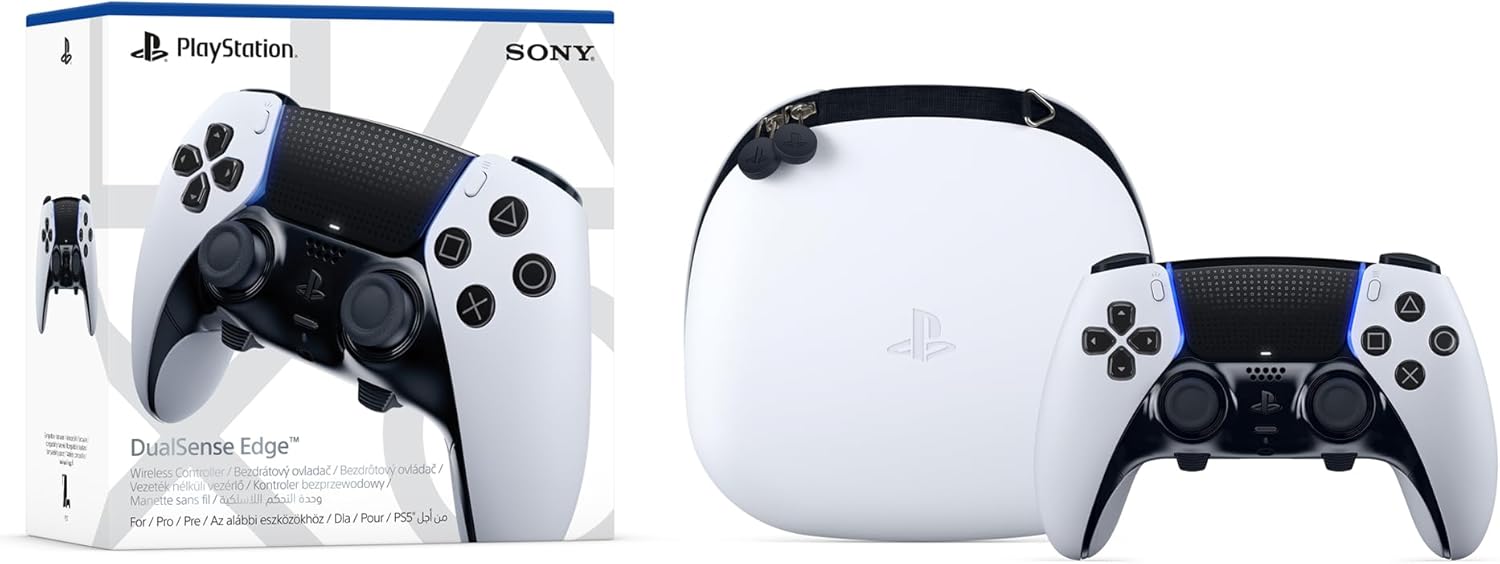
The DualSense Edge — Sony's $199.99 pro model — connects identically on PC; the same rules apply, with the added caveat that its swappable stick modules and profile system are managed through the same PlayStation Accessories app.
Part 3: Troubleshooting — the failures that actually happen
Across the Microsoft support forums, Steam community threads, and controller subreddits, a handful of problems account for nearly all connection pain. In order of frequency:
- "Windows doesn't see the controller at all." Charging-only cable is the #1 cause for both pads — swap it. Then try a different USB port, then check Device Manager for the device appearing and disappearing. For Xbox Bluetooth specifically, remove the device from Windows and re-pair.
- "Xbox pad keeps disconnecting over Bluetooth." Update the firmware via the Xbox Accessories app, update the Windows Bluetooth driver, or — if the drops started right after a firmware update — revert the firmware. If the PC's Bluetooth chip is the weak link, the Xbox Wireless Adapter eliminates the entire category of problem.
- "DualSense won't pair over Bluetooth." Reset the controller with the pinhole button, remove the old "Wireless Controller" entry from Windows' device list, and pair fresh. Update firmware via PlayStation Accessories if it persists.
- "The game doesn't detect my controller." With the DualSense, this is almost always the XInput gap — enable Steam Input or DS4Windows/DSX. Some games also need their own input mode switched from "keyboard" to "controller" in settings.
- "Haptics or adaptive triggers aren't working." Check that the game actually has native DualSense support, connect by USB (haptics), and update firmware. Toggle Steam Input off and on — some titles only deliver the full effect with it disabled.
- "I want two controllers at once." All methods support it: the Xbox adapter handles up to eight, Bluetooth handles several (each paired separately), and wired just needs ports. Local co-op on PC works fine with one Xbox pad and one DualSense mixed.
- "Will this break my console pairing?" No. Xbox pads need no unpairing — they just connect to whatever host you choose. The DualSense keeps four slots; reconnect to a PS5 anytime with a USB cable plus the PS button.
Part 4: Which pad should you actually run on PC?
Now that both are connected, the honest 2026 answer depends on where you play:
- Xbox Wireless Controller ($51.99): The zero-friction choice. Native XInput means it works everywhere on Windows with no shims, it's the natural pad for Game Pass and Microsoft Store titles, and the ergonomics are the industry benchmark. The downsides are its potentiometer sticks (drift is a when-not-if for heavy users — see the drift-free roundup below) and no gyro.
- DualSense ($74.99): The features king in Steam — haptics, adaptive triggers, gyro aiming, touchpad-as-mouse — but it needs the Steam Input layer for non-Steam games and its battery is the worst of the two.
- DualSense Edge ($199.99): The pro-tier DualSense for people who want back paddles and swappable stick modules; the connection story is identical to the standard pad.
If you're buying a pad specifically for PC rather than using one you own, the third-party Hall-effect/TMR options are worth a hard look — they're drift-proof and dramatically cheaper:
- 8BitDo Ultimate 2C Wireless ($29.99): Hall-effect sticks, genuine 1000Hz polling over its 2.4GHz dongle, and a 19-hour battery at the price of a dinner. The catch: Bluetooth on the 2C is Android-only, so PC wireless means the dongle — which is fine, since the dongle is the better connection anyway.
- GameSir Cyclone 2 ($55.99): The best sub-$60 three-mode wireless pad — TMR sticks, 1000Hz, dual-mode triggers, and it connects over 2.4GHz, Bluetooth, or USB-C like the big two.
- PowerA Enhanced Wired Controller ($37.99): The budget wired Xbox pad — licensed by Microsoft, XInput-native, and the sensible backup or guest controller.
None of the third-party pads work on an Xbox or PlayStation console, so they're PC/Switch/mobile pads — but for the audience this guide serves, that's rarely the deciding factor.

FAQ
- Do I need drivers? No. Windows 10/11 have native drivers for both the Xbox pad and the DualSense. The only software you might add is Steam Input (free) or DS4Windows/DSX for XInput-only games with a DualSense.
- Can I use two controllers at once? Yes — adapter (up to 8), Bluetooth, or wired, and mixed Xbox/PlayStation pairs work fine.
- Does the DualSense work with Game Pass games? Yes, once it's running through Steam Input or DS4Windows/DSX; without a compatibility layer, XInput-only titles won't see it.
- Why does my DualSense show up as "Wireless Controller"? That's normal — it's the generic Windows name for the pad over Bluetooth. It behaves identically once Steam Input or a shim is in the picture.
- Does connecting to a PC damage the controller or void anything? No. Both pads are designed for multi-device use, and console pairing survives untouched.
Related reading
- Xbox Wireless Controller review — the full breakdown of the default pad
- PlayStation DualSense review — haptics, triggers, and battery in depth
- DualSense Edge review — is the pro model worth $199.99?
- Best controllers with no stick drift 2026 — the Hall-effect and TMR alternatives
- Best Hall Effect controllers 2026 — drift-proof tech explained
- Best TMR controllers 2026 — the newest sensor generation
- Best controllers for Steam Deck 2026 — the same question, for handheld owners
The setup math is simple once you know it: Xbox pads are native citizens of Windows and just work; DualSenses are guests that need Steam Input (or DS4Windows) to be fully at home, and USB for their best features. Match the connection to how you play — cable at a desk, adapter for wireless Xbox, Bluetooth for everything else — and both pads will serve you for years.
Related Guides
Buying Guide
Best PC Controllers 2026: The Definitive Roundup
From the $19.99 budget king to the sub-millisecond esports monster — every PC controller worth buying in 2026, ranked by use case with verified specs and community sentiment.
Buying Guide
Best Xbox Controllers 2026: Elite Series 3, Hall Effect & Budget Picks
From the new Xbox Elite Series 3 to drift-proof Hall Effect and TMR pads like the 8BitDo Ultimate 3 and GameSir G7 Pro — the best Xbox Series X|S and PC controllers for every budget in 2026.
Buying Guide
Best PS5 Controllers 2026: Hall Effect, Pro & Budget Picks
From the DualSense to drift-proof Hall Effect and TMR pros like the SCUF Omega — the right PS5 controller for every budget in 2026.